

Whatsapp stalking — the noob way!
The first thing one does when you wake up is check your whatsapp notifs. Thats also the last thing you do before sleeping. We are the social generation. Sadly, our parent’s generation is much more addicted to whatsapp than we are. Bottomline, everyone is on whatsapp!

Lets say, if I plot of graph when you were online, I can get a lot of information about you. Your sleep cycle, your whatsapp pattern, etc. I thought of making such tool in college to check which couples (secret) are talking late night! I thought of tracking their whatsapp online and plot the graph and see the patterns in it.
With whatsapp web, all you have to do is manipulate and see the DOM elements and then use this data. In this blog I will share some js scripts to run on chrome console which I wrote to track the online status. Will also share some whatsapp findings I found.
Lets start with some findings:
- [3.5–6] seconds difference between actual opening WhatsApp and showing on web WhatsApp online.
- [15–17] seconds difference between actual closing Whatsapp and removing the online status on whatsapp web.
- You can see anyone’s online status — just you need to know their number. Irrespective if they know yours too
- You are not shown online on others screen if you are online on WhatsApp web but not on the phone. Crazy!
Now open whatsapp web and click on any contact in the list. Then run the below script in the console.
let userXpathString = '//*[contains(concat( " ", @class, " " ), concat( " ", "_25Ooe", " " ))]';
let isOnlineXpath = '//*[contains(concat( " ", @class, " " ), concat( " ", "O90ur", " " ))]';
let namesXpath = '//*[(@id = "main")]//*[contains(concat( " ", @class, " " ), concat( " ", "_1wjpf", " " ))]';
let POLLINGTIME = 5000;
let intervalTimer;
let recordOnlineStatusTimer;
let status = []
let counter = 0;
let NEXT_USER_TIME = 10;
let RECUR = false;
var startTime;


function xpath (xpathToExecute){
  var result = [];
  var nodesSnapshot = document.evaluate(xpathToExecute, document, null, XPathResult.ORDERED_NODE_SNAPSHOT_TYPE, null );
  for ( var i=0 ; i < nodesSnapshot.snapshotLength; i++ ){
    result.push( nodesSnapshot.snapshotItem(i) );
  }
  return result;
}

function getEpochTime() {
    var d = new Date();
    return Math.floor(d.getTime()/1000);
}

function getEpochTimeInMs() {
    var d = new Date();
    return d.getTime();
}


function simulateMouseEvents(element, eventName) {
    var mouseEvent= document.createEvent ('MouseEvents');
    mouseEvent.initEvent (eventName, true, true);
    element.dispatchEvent (mouseEvent);
}

function simulateKeyboardEvents(event, element, eventName) {
    var keyboardEvent= document.createEvent (event);
    keyboardEvent.initEvent (eventName, true, true);
    element.dispatchEvent (keyboardEvent);
}

function recordOnlineStatus(names) {
    let time1 = getEpochTimeInMs();
    recordOnlineStatusTimer = setTimeout(function(){
        if (counter == names.length && !RECUR) {
            console.log(names.length)
            console.log(new Date().getTime() - startTime)
            return
        }

        actualWork(names[counter % names.length]);
        counter+=1;
        recordOnlineStatus(names);

    }, NEXT_USER_TIME)
    console.log(getEpochTimeInMs() - time1);
}

function actualWork(name) {
    storeStatus();
    let time1 = getEpochTimeInMs();
    simulateMouseEvents(name, "mousedown")
    // console.log(getEpochTimeInMs() - time1);
}

function storeStatus() {
    let username = xpath(namesXpath)[0].innerHTML
    if (xpath(isOnlineXpath).length != 0 && xpath(isOnlineXpath)[0].innerHTML == "online") {
        status.push({"username": username, "time": getEpochTime(), "status": "online"})
    }
    else {
         status.push({"username": username, "time": getEpochTime(), "status": "offline"})
    }
    console.log(status[status.length - 1])
    // console.log(status.length)
}


function main() {
    startTime = getEpochTimeInMs();
    counter = 0;
    status = []
    var names = document.getElementsByClassName("_25Ooe");
    recordOnlineStatus(names);
}

function startPolling() {
    setInterval(function() {
        recordOnlineStatus();
    }, POLLINGTIME)
}


function getNames(names) {
    let namesArray = []
    for (var i=0;i<names.length;i++) {
        namesArray.push(names[i].textContent)
    }
    console.log(namesArray)
}
click on any whatsapp contact and run main() in console. You would see the script clicking each contact (till 25) and log the name and online status of each one of the 25 people.
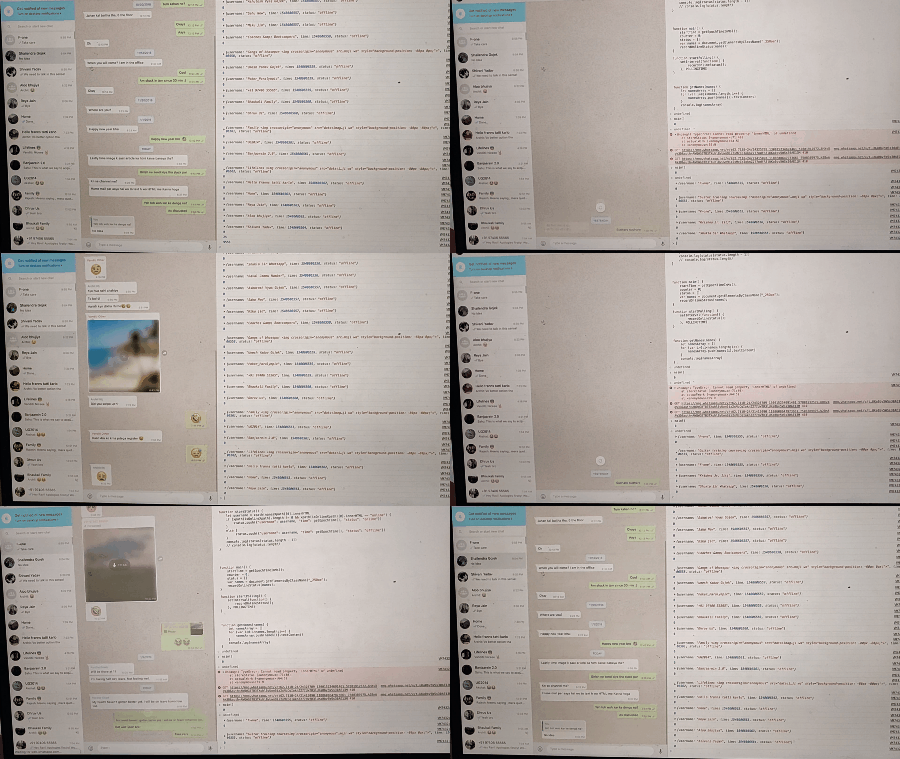 Its not that fast. Its just GIF!
To scroll down, (by many hit and trials) — the code to do that is
$("#pane-side").scrollTo(0,2000) // Replace 2000 with any Y-Coordinate
If we follow this model
For every 15 seconds (as thats the time when we can still see online for a user even though he has gone)— we can loop 33 names — round off to 30. So for one sim we can track 30 users. We cannot scale it horizontally as for every sim, whatsapp web allows only one place for it to be opened.
For an individual use — this is okay! But how to scale. There are people who want a notification on their phone when their crush is online or parents who want a notification when their son is online. Or you want to get the graphs of some person on their whatsapp usage. And they can pay me something too! Unfortunately this model above won’t work.
Headless Browsing
The lag here is the rendering of UI elements. I don’t need these elements. This was when I found the headless browser. So that we can remove the graphical rendering overhead. Its majorly used for UI testing but I thought it can solve the problem for me. I came across Puppeteer. But it was also not much of a help and has some learning curve in the beginning. After some hit and trials, I got to know that its not much of my use and I could not do much with it. I did not explore this completely but found a better alternative during this testing (Something which I wanted — perfect for my needs and scalable). If anyone wants, they can try this ahead and tell me the results.
Will share what I am doing then in my another blog. You can contact the author at me@abhinavrai.com